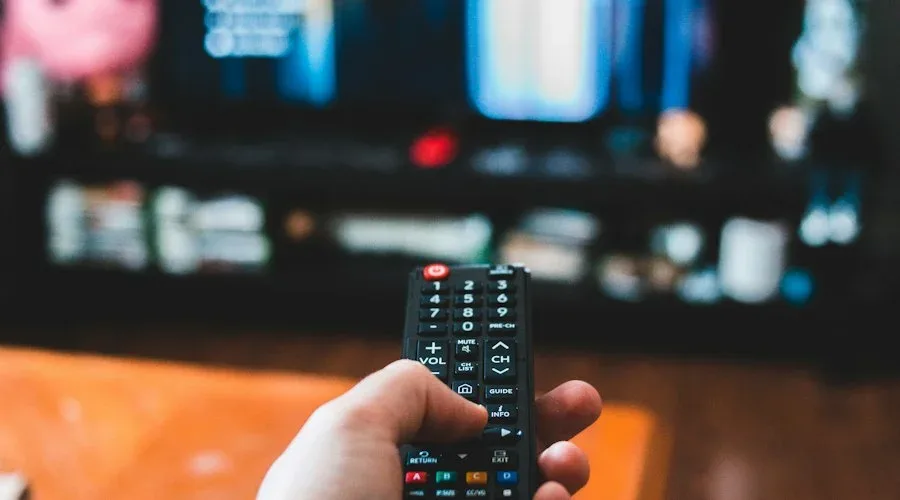
The Amazon Fire TV Stick is the most popular way to watch IPTV in Canada. It is cheap, it plugs into any TV with an HDMI port, and it runs all the main IPTV player apps. This guide shows you how to set up IPTV on Firestick from start to finish, which settings to change for a smooth picture, and what to do if something goes wrong.
What you need before you start
- A Fire TV device: Fire TV Stick, Fire TV Stick 4K, 4K Max or a Fire TV Cube, connected to your Wi-Fi.
- An IPTV subscription: your provider sends a username, password and server URL (Xtream Codes) or an M3U playlist link. With IPTV4You you get these by WhatsApp or email right after you order or start your free 24-hour trial.
- Enough internet speed: about 25 Mbps for one HD screen and 50 Mbps for 4K. Check your numbers with our IPTV speed calculator.
Good to know: the Fire TV Stick 4K Select released in late 2025 runs Amazon’s newer Vega OS, which does not allow apps from outside the Amazon Appstore. On that model, use a player that is available in the Appstore, or use another Fire TV model, Android TV box or Smart TV.
Step 1: Check the Amazon Appstore first
Some IPTV players can be installed directly from the Amazon Appstore, which is the simplest option. On the Fire TV home screen, go to Find › Search and type the name of the player you want. If it appears, install it, open it and jump to Step 4.
If the player you want is not there, continue with the next steps. Most Canadian users install their player with the Downloader app.
Step 2: Install Downloader and allow it to install apps
- Go to Find › Search, type Downloader and install the app by AFTVnews.
- Open Settings › My Fire TV › Developer options.
- Select Install unknown apps and turn it ON for Downloader.
Don’t see Developer options? Go to Settings › My Fire TV › About, select your device name 7 times until you see the message “You are now a developer”, then go back one screen.
Only allow apps from sources you trust. Your provider should give you the official download link for the player.
Step 3: Download your IPTV player
- Open Downloader and allow access to files if asked.
- In the address box, type the download link or code your provider gave you and select Go.
- When the download finishes, select Install, then Done.
- Downloader asks if you want to delete the installation file. Select Delete twice to free up storage, which matters on older sticks with only 8 GB.
Not sure which player to choose? See our comparison of the best IPTV player apps. For a step-by-step with one of the most common players, read our IPTV Smarters Pro setup guide.
Step 4: Add your IPTV login
Open the player. Most apps offer two ways to add your subscription:
| Method | What you enter | Best for |
|---|---|---|
| Xtream Codes API | Username, password and server URL | Most users: loads live TV, movies, series and the TV guide in one go |
| M3U playlist | One long link (URL) | Players that do not support Xtream Codes |
Type the details carefully: they are case-sensitive, and a missing http:// or a wrong port is the most common reason a login fails. Tip: install the free Fire TV app on your phone and use its keyboard to type long links faster.
Step 5: Settings for a smoother picture
- Use 5 GHz Wi-Fi or Ethernet. The 4K Max supports Wi-Fi 6E; for older sticks, an Amazon Ethernet adapter makes a big difference.
- Turn off data monitoring in Settings › Preferences › Data monitoring so the stick does not lower the quality.
- Set the TV guide time zone. In the player settings, pick your local zone (Pacific, Mountain, Central, Eastern or Atlantic) so programme times are right.
- Clear the cache once a month: Settings › Applications › Manage installed applications › your player › Clear cache.
- Restart the stick once a week by holding Select and Play/Pause together for 5 seconds.
Still seeing the spinning wheel? Our guide on why IPTV keeps buffering walks through ten fixes.
FAQ
Is the Firestick good for IPTV?
Yes. Fire TV sticks are affordable, easy to use and run all the main IPTV players. For 4K and the smoothest experience, the Fire TV Stick 4K Max is the best choice, ideally connected by Ethernet or 5 GHz Wi-Fi.
Do I need a VPN to use IPTV on Firestick?
No, a VPN is not required to use IPTV4You. A VPN adds an extra step to your connection and can slow it down, so try without one first.
Why does my Firestick say “App not installed”?
Usually the stick is out of storage or the download was interrupted. Delete apps you do not use, clear the cache, restart the stick and download the player again.
Can I use one IPTV subscription on several Firesticks?
Yes, if your plan includes enough devices. IPTV4You plans cover 1 to 4 devices at the same time, so a home with three TVs needs a 3-device plan.
How do I update my IPTV player on Firestick?
Apps from the Amazon Appstore update automatically. For players installed with Downloader, download the latest version from the official link and install it over the old one; your login is usually kept.
Also read: IPTV on Android TV and Google TV: Setup Guide for Canada
Keep reading
 Buying guide
Best IPTV Canada Service: 7 Things That Make a Service Premium
Looking for the best IPTV Canada service? These 7 checks show what makes a service truly premium, and you can test each one during a free 24-hour trial.
Read more → Sports
IPTV for Sports in Canada: What Matters for Live Games
What decides whether IPTV works for live games: stream delay, frame rate, peak-hour load, the TV guide and screens for game night, plus how to test it during a real game.
Read more → Plans
See all IPTV4You plans
1 to 4 devices, 1 to 12 months, prices in CAD.
See plans →